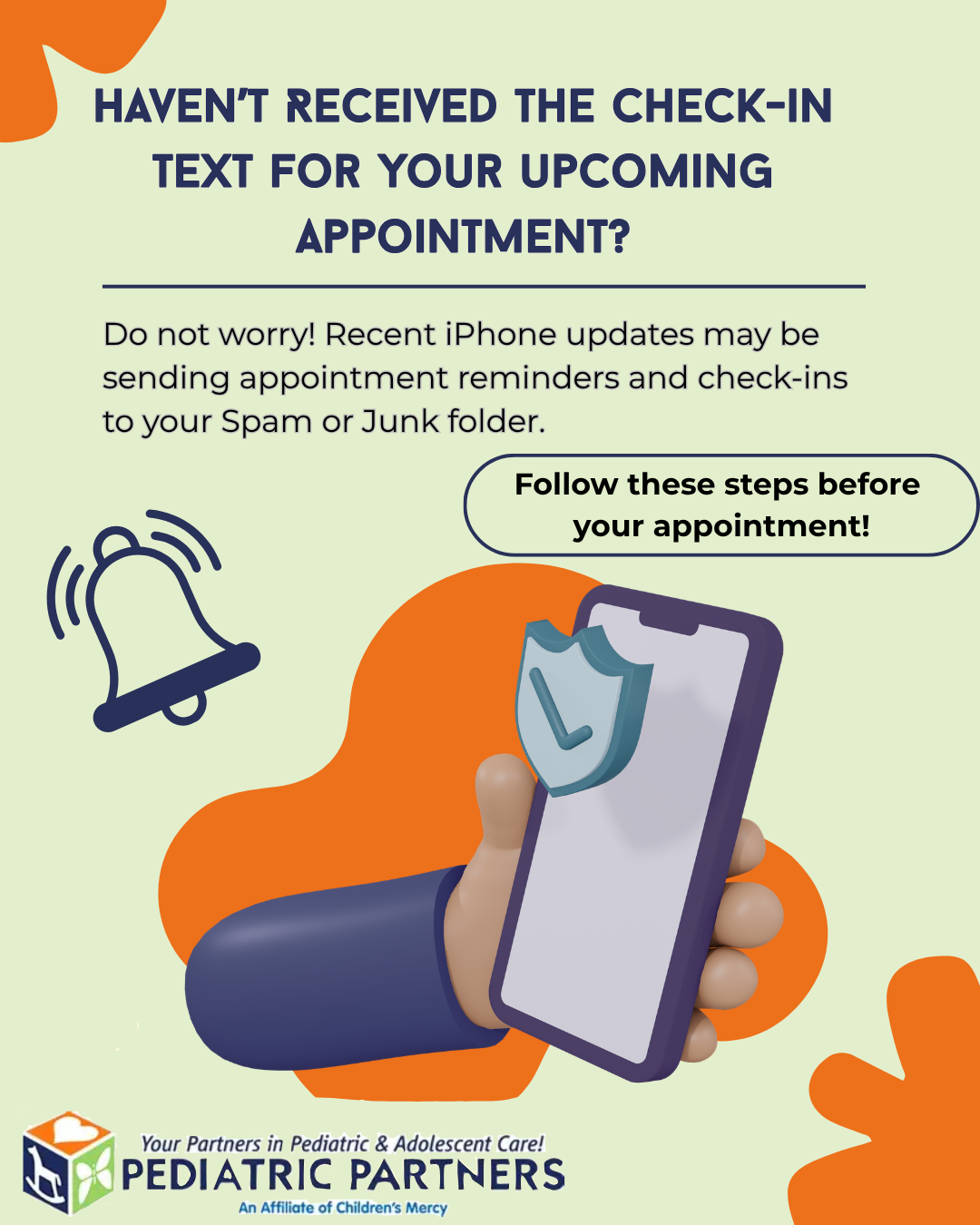
Some families have told us they aren’t receiving their Phreesia pre‑visit check‑in texts. In many cases, this happens because your phone carrier mistakenly flags Phreesia’s automated sender numbers as spam or advertising. When that happens, the messages are filtered out before you ever see them.
Here are two quick steps that reliably fix the issue:
1. Add Phreesia’s Number to Your Contacts
Phreesia sends messages from short codes (5‑ or 6‑digit numbers) or rotating local numbers.
Adding the number to your contacts tells your phone it’s a trusted sender.
How to do it:
- Open the most recent Phreesia text you did receive.
- Create a new contact (you can name it “Doctor’s Office Check‑In”).
- Save the number or short code.
- Once saved, your phone is far less likely to filter future messages.
2. Check Your Spam / Blocked Messages Folder
Depending on your phone, you may need to manually mark these messages as “not spam.”
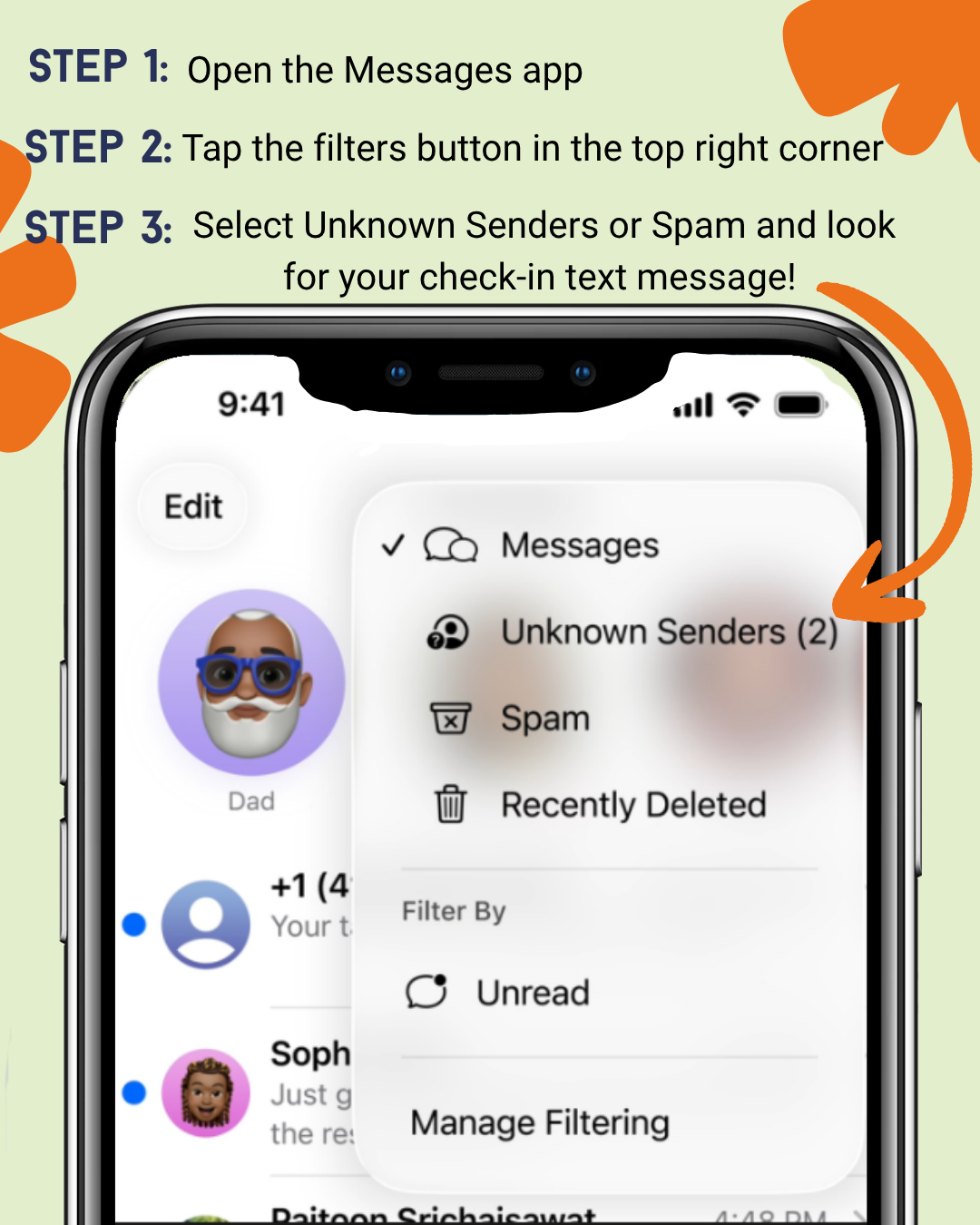
On iPhone (iOS):
Messages app → Filters or Unknown Senders → Find the Phreesia text → Tap it → Tap the banner at the top → Info → Add to Existing Contact or Create New Contact.
On Android:
Messages app → Three dots (upper corner) → Spam & Blocked → Find the Phreesia text → Tap
Not spam or
Unblock.
If you've previously opted out of our texts, you can opt back in!
To get back on our text list, just send UNSTOP to 866-467-1139. It’s quick, easy, and ensures you stay in the loop with everything Pediatric Partners is doing to care for your family.
Why This Matters
Pre‑visit check‑in helps you move through your appointment more quickly, reduces wait times, and ensures we have accurate information before your visit. Adding the number to your contacts is the simplest way to make sure you don’t miss these important messages.